
-
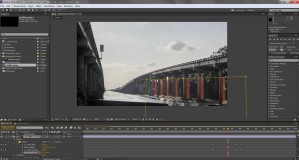
Temporal changes through time-lapse and annotation
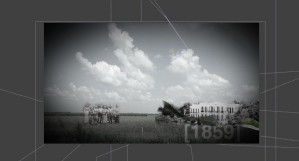
The temporal aspect of the narrative is depicted by a time-lapse video and animated diagramming in After Effects. A time-lapse video effectively portrays changes taking place in a scene and annotations convey the objectives of the narrative. To create a time-lapse video, a series of photographs were taken from the boat ramp at Atchafalaya basin […]
-
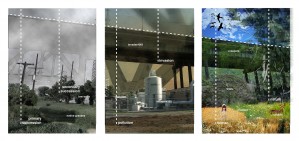
Time Lapse Video, After Effects and Changes in Nature
“Nature’s first green is gold, Her hardest hue to hold. Her early leaf’s a flower; But only so an hour. Then leaf subsides to leaf. So Eden sank to grief, So dawn goes down to day. Nothing gold can stay.” ― Robert Frost I continued my narrative about changes in landscape that was showed […]
-
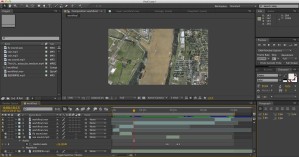
After Effects Technique ——The Flood History of the Village
Technology of After Efeect ——The Flood History of the Village In this work, I would like represent the stronger visual effect of the flood destroyed, and accompanied with the peace of the place former, and most importantly, I would like to show the green and constructed frastructure, which have been built to control flood. […]
-
Animation: Landscape changing over time
CONCEPT: A composition of three different vertical videos were made to represent the change of Mississippi river over one thousand years. The landscape along the river was the clue to show the timeline: one thousand years ago, the Mississippi river water is quite clean, forests and wetlands are grown all over the coast; 500 years […]
-
Producing the Effect of Going through Clouds and Scenes in Adobe After Effects
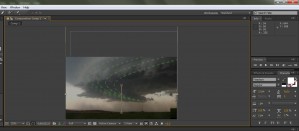
+ import and place pictures or scenes use pen tool to choose the zone we need on each picture – don’t forget to feather change the layers of these pictures into 3D layers change the locations of each layer and rotate them a little bit change and rotate the layers in their z coordinates – […]
-
Perceptual Cataracts
Cities all over the world face a similar challenge. They must somehow get their true landscape to live up to their idealized, billboard or travel advertisement image. More than living up to the hype cities have to acknowledge that these holes exists, and they are often times gaping. To expose the idea of the portrayals […]
-
Animation: Growing a Tree in Maya
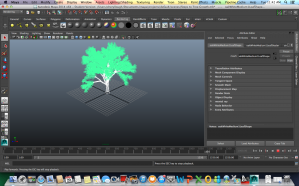
Before I begin, I would like to touch on the history of 3D animation. Although there was experimentation with computer graphics prior to the 1980’s, 3D photo-realistic graphics didn’t truly take shape until the first movie to use solid 3D computer generated imagery. That movie was TRON, in 1982. (I don’t mean to discredit all […]
-
The Animated Diagram
The Animated Diagram Continued with my annotated drawings, I tried to tell the story by movie this time. Different from the last one, the diagram overlaps on the drawing, it could appears in a proper way to stress the shape or process. Make animated diagram in the movie would get the audiences’ attention in a […]
-

Adding Time Lapse Sequence to After Effects
Time-lapse photography is a technique whereby the frequency at which frames are captured is much lower than that used to view the sequence. When played at normal speed, time appears to be moving faster. For example, an image of a scene may be captured once every second, then played back at 30 frames per second. […]
-
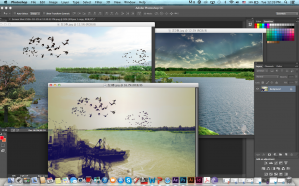
Creating a Landscape With Digital Collage
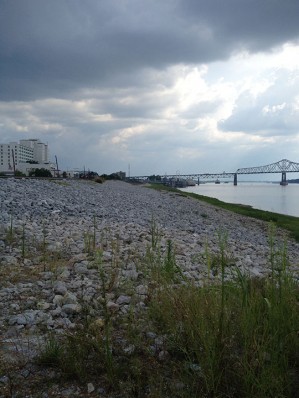
Using collage allowed me to digitally bring together textures and pieces of individual images in Photoshop to build a completely new scene in. My collage process created a new landscape with a certain mood, weather condition, time of day, while also adding new depth and dimension to my base imagery. My collage process started with […]